
How to Use Freezy on Your Phone
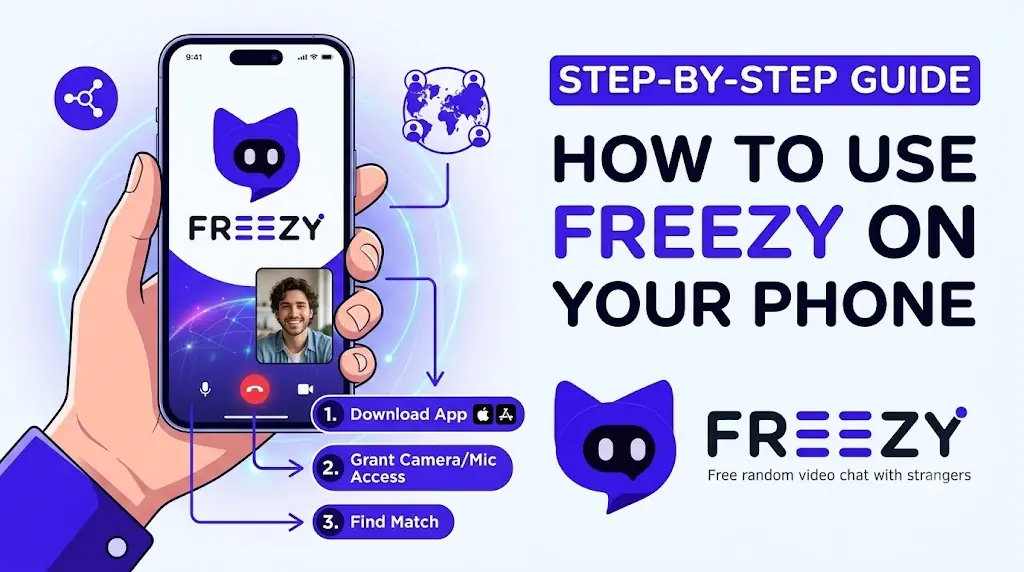
Most people who use Freezy do it from a phone — and honestly, it's the natural way to random chat. Your phone already has a great camera, a decent mic, and it's with you everywhere. Best of all, there's nothing to install: Freezy runs entirely in your mobile browser.
Here's exactly how to get set up on iPhone or Android, how to fix the most common permission hiccups, and a few tips that make mobile video chat noticeably better.
Step-by-step: your first chat from a phone
- Open your browser. Safari on iPhone, Chrome on Android — whatever you already use is fine.
- Go to freezy.cam. Type it in the address bar. That's the whole "installation."
- Tap Start. Pick video, voice, or text mode. No account needed — Freezy is a no sign-up video chat, so you go straight in as a guest.
- Allow camera and microphone. Your browser will show a permission prompt the first time. Tap Allow for both — video chat can't work without them.
- Start talking. You'll be matched with a stranger within a few seconds. Tap Skip anytime to move to the next person.
From opening the browser to talking with someone, the whole thing takes under a minute.
Why there's no app to download
Freezy uses the same real-time video technology (WebRTC) that powers browser-based calling everywhere, and modern mobile browsers support it fully. Running in the browser means no App Store or Play Store detour, no storage used, no update nags, and nothing sitting on your home screen you'd rather keep private. Visit the site, chat, close the tab — done.
iPhone notes
- Safari is the most reliable browser for camera and mic access on iOS.
- If you accidentally tapped "Don't Allow" on the permission prompt, tap the AA (or puzzle-piece) icon in Safari's address bar → Website Settings → set Camera and Microphone to Allow. Or go to Settings → Apps → Safari → Camera/Microphone.
- iOS pauses the camera if you switch apps mid-chat — that's an operating system behavior, not a bug. Come back to the tab and it resumes.
Android notes
- Chrome works great; Firefox and Samsung Internet also support browser video chat.
- If permissions were denied, tap the lock/tune icon next to the address bar → Permissions → allow Camera and Microphone. You can also check Settings → Apps → Chrome → Permissions.
- Some battery-saver modes throttle background data aggressively. If video gets choppy, turn off battery saver during a chat session.
Troubleshooting: "camera blocked" and other hiccups
- Camera or mic blocked. Nine times out of ten, the permission was denied at some point. Fix it in the browser's site settings (see the iPhone/Android notes above), then reload the page.
- Black screen on your own preview. Another app might be holding the camera. Close other apps that use it (camera app, other video calls) and reload.
- No sound from the other person. Check your ring/silent switch and media volume — media volume is separate from ringer volume on both platforms.
- Constant freezing. That's almost always the connection, not the phone. Move closer to your router or switch between Wi-Fi and mobile data to see which is stronger.
Tips for better mobile chats
- Prefer Wi-Fi. Video is smoother and you won't touch your data allowance.
- Face a light source. Sit facing a window or lamp, not with it behind you — backlighting turns you into a silhouette.
- Use headphones. Even cheap earbuds cut echo dramatically and keep your conversation out of the room.
- Prop the phone up. A stable phone at eye level looks and feels much better than an arm's-length selfie angle for a long conversation.
Battery and data: what to expect
Live video is one of the more demanding things a phone does — camera, screen, and network all running at once — so expect the battery to drain faster than during normal browsing. If you're settling in for a long session, plug in.
On mobile data, video chat consumes data continuously in both directions, so keep an eye on your usage if your plan is limited. Two easy ways to lighten the load: switch to a voice call (a fraction of the data) or text chat (barely any) when you don't need the camera.
The bottom line
Using Freezy on your phone is as simple as opening freezy.cam, allowing camera and mic, and tapping Start. No app, no account, no setup beyond a single permission prompt. Sort out lighting and headphones, keep an eye on battery for long sessions, and your phone becomes the best random chat device you own.
Try it on your phone right now
Open Freezy in your mobile browser and start a video chat in under a minute. No app, no account, no download.
Start Mobile Video Chat